


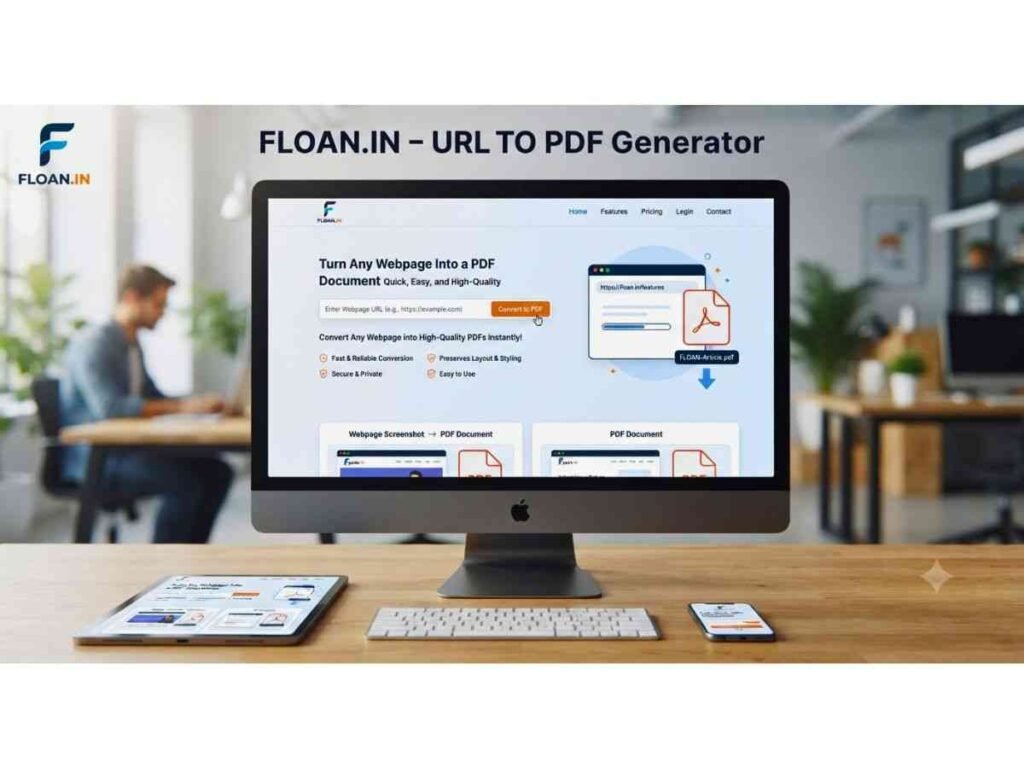
URL to PDF Generator: Turn Any Webpage Into a PDF Document
Paste a link or your own text, and this free URL to PDF generator turns it into a clean, downloadable PDF right inside your browser — no signup, no watermark, no waiting for a server.
Works best on pages that allow embedding. Sites like banks, social networks, and search engines usually block this for security, so we also give you a guaranteed print-to-PDF path below.
What Is a URL to PDF Generator?
A URL to PDF generator is a tool that takes a web address and turns whatever is on that page — text, headings, images, and layout — into a static PDF file you can save, print, or send to someone else. Instead of bookmarking a page you might never revisit, or copy-pasting text into a document and losing all the formatting, a URL to PDF converter captures the page as it looked at that moment and locks it into a portable, universally readable format.
This particular tool was built to be lightweight and privacy-respecting. Everything happens in your own browser tab: there is no upload step, no account, and no third-party server quietly storing a copy of every page you convert. That also means it is completely free to use, with no daily limit on how many links or documents you convert.
Two ways to get from a link to a PDF
Because browsers restrict what a webpage is allowed to do with content from other websites, a single trick rarely covers every case. That is why this generator gives you two complementary paths: a quick in-browser preview capture for pages that allow it, and a guaranteed print-to-PDF flow — powered by your browser’s own print engine — for everything else, including sites that actively block embedding.
PDF was chosen as the target format for a reason. Unlike a webpage, a PDF renders the same way on a Windows laptop, an iPhone, an Android tablet, or a Linux desktop, because the page layout, fonts, and spacing are baked directly into the file rather than recalculated by whatever browser happens to open it. That consistency is exactly why banks send statements as PDFs, universities send transcripts as PDFs, and governments publish forms as PDFs — it is one of the few formats where “what you see is what you get” holds true everywhere, on every device, indefinitely into the future.
Why Convert a Web Page to PDF?
Read offline, anywhere
Flights, commutes, and patchy Wi-Fi are not going away. A PDF saved to your phone or laptop opens instantly, with no connection required.
Archive pages before they change
Prices, articles, and terms-of-service pages get edited or deleted all the time. A PDF is a timestamped snapshot you control.
Share a clean, printable copy
Sending a raw link means the recipient sees ads, cookie banners, and whatever the page looks like today. A PDF is fixed and easy to forward, sign, or file away.
Build a research library
Students and researchers can collect dozens of sources as PDFs, then search, highlight, and annotate them offline in any PDF reader.
How Our URL to PDF Generator Works
Using the tool above takes under a minute. Here is the exact flow for each mode.
Webpage mode
-
Paste the link
Copy the full web address, including
https://, into the URL field. -
Try the quick preview
Click “Load quick preview” to attempt to render the page inline. If the site permits it, you will see a live preview appear below the buttons.
-
Download as PDF
If the preview loads successfully, click “Download preview as PDF” to capture what is visible and save it as a PDF file.
-
Fall back to print-to-PDF
If the preview stays blank — which happens on sites that block embedding — click “Open page & print to PDF” instead. This opens the real page in a new tab; from there use your browser’s print command (Ctrl+P on Windows/Linux, Cmd+P on Mac) and choose “Save as PDF” as the destination printer.
Text/HTML mode
-
Paste or type your content
Drop in an article, your notes, an email draft, or simple HTML formatting.
-
Set your document title, page size, and font
Choose A4, US Letter, or Legal, pick portrait or landscape, and set a comfortable reading size.
-
Generate and download
Click “Generate & download PDF” and the file is created instantly and saved to your device.
Key Features of This Free URL to PDF Tool
No signup required
Start converting immediately — there is no account wall between you and your PDF.
Runs in your browser
Conversions happen locally, so your links and text are never uploaded anywhere.
Two conversion modes
A quick preview capture for compatible pages, plus a dedicated text/HTML writer for full control.
Custom page setup
Choose page size, orientation, and font size for the text/HTML mode.
Mobile friendly
The layout adapts to phones and tablets, and print-to-PDF works from mobile browsers too.
Unlimited, free use
No credits, no watermark, and no daily conversion cap.
Client-Side vs. Server-Side URL to PDF Conversion
It helps to understand what is actually happening under the hood, because it explains why some pages convert instantly while others need the print-to-PDF fallback.
| Approach | How it works | Trade-off |
|---|---|---|
| Client-side (this tool) | Your browser tries to render the target page in a preview frame and capture it locally | Fast, private, and free — but blocked by sites that disallow embedding |
| Print-to-PDF (this tool) | Your browser’s own print engine renders the real page and “prints” it to a PDF file | Works on almost any page, but layout follows that site’s print stylesheet |
| Server-side headless browser | A remote service loads the page on its own server and returns a PDF | Very reliable, but usually needs an account, an API key, and it sends the URL to a third party |
Many websites send a security header called X-Frame-Options, or a Content-Security-Policy with a frame-ancestors rule, that tells browsers “do not let anyone else embed this page.” You can read more about how this header works on MDN Web Docs. This protects users from a trick called clickjacking, but it also means a purely in-browser tool cannot always pull in a full copy of every site — which is exactly why the print-to-PDF path exists as a reliable backup.
It is also worth knowing that even when a site does allow embedding, the browser’s canvas-capture engine can still be blocked from reading pixels that came from a different origin — a separate rule sometimes called canvas tainting. In practice this means a handful of pages will load visibly in the quick preview but still refuse to convert into an image. Rather than leave you stuck, the tool detects that failure and points you straight to the print-to-PDF option, so you are never left without a working path to a finished PDF.
Security and Privacy When Converting Web Content
Privacy is a common, and reasonable, concern with any “paste a link, get a file” tool. It is worth being explicit about what does and does not happen here. When you use the quick preview, your browser fetches the target page directly — the same way it would if you typed the address into a new tab yourself. Floan.in’s server never sees the URL you typed, never receives the page content, and never stores the PDF you generate. The text/HTML mode is even more contained: everything you type stays inside the browser tab’s memory and is written straight into a PDF file on your own device.
This local-first approach has a practical upside beyond privacy. Because there is no upload or server-side queue, there is nothing to wait for — conversions finish in a second or two on most devices, and the tool works exactly the same whether you are on fast office Wi-Fi or a slow mobile connection, since the only network request is the one your browser makes to load the target page itself.
Best Practices for Converting Web Pages to PDF
Wait for the page to fully load
If the target page uses infinite scroll or lazy-loaded images, scroll through it once in its own tab before capturing.
Use “print” layouts when offered
Many news and documentation sites have a dedicated print or reader view that produces a cleaner PDF.
Check the page count before saving
In the print dialog, review the preview pane so you are not saving 40 pages of navigation menus by accident.
Name your files clearly
Use a descriptive document title in text/HTML mode so the PDF is easy to find later.
Getting the best results from Text/HTML mode
When you are writing or pasting your own content instead of converting a live page, a little formatting care goes a long way. Break long blocks of text into short paragraphs separated by blank lines — the generator treats a blank line as a paragraph break and adds breathing room automatically. If you are working from a Word document or an email, paste it as plain text first if the formatting looks cluttered, since stray line breaks from other applications can sometimes carry over. For anything wider than standard prose, such as a table of figures or a code sample, switch the orientation to landscape before generating, so long lines are not awkwardly wrapped across a narrow portrait page.
Common Use Cases for URL to PDF Conversion
Students & researchers
Save journal abstracts, articles, and reference pages as PDFs that stay put even after the original link goes offline.
Business & legal teams
Turn a pricing page, terms update, or vendor quote into a dated PDF record for internal files.
Journalists & researchers
Archive a page exactly as it appeared before an edit, using a PDF as a simple, verifiable snapshot.
Developers & QA testers
Export a staging page or documentation draft to PDF for a quick offline review or a bug report attachment.
Related Free Tools on Floan.in
This URL to PDF generator is part of a growing set of free, no-signup browser tools on Floan.in. A few you might also find useful:
QR Code Generator
Text Summarizer
Time Zone Converter
Plagiarism Checker
Meme Generator
You can browse the complete collection on the Floan.in homepage.
Further reading
Adobe: PDF basics
Google Search Central docs
jsPDF on GitHub
html2canvas on GitHub
Frequently Asked Questions
Yes. Every feature on this page, including unlimited PDF conversions, runs directly in your browser and does not need an account, email address, or payment of any kind.
Browsers enforce a security rule called the same-origin policy, and many sites send an X-Frame-Options or Content-Security-Policy header that blocks other pages from embedding or reading their content. That protects users from clickjacking, but it also means a purely browser-based tool cannot silently pull in and repaint every website. For those pages, use the built-in print-to-PDF flow instead.
No. Every conversion, whether it is a webpage snapshot or a text/HTML document, is processed locally in your browser. Nothing is sent to a server, logged, or saved by Floan.in.
Yes. The tool and the print-to-PDF flow both work on mobile browsers. On most phones, choose “Print” from the browser menu, then pick “Save as PDF” as the destination instead of a physical printer.
Webpage mode is for turning an existing page you find online into a PDF, using either a quick in-browser preview capture or your browser’s native print dialog. Text/HTML mode is a standalone PDF writer: you paste or type your own content, choose a page size and orientation, and generate a fresh PDF file instantly, with no dependency on any outside website.
When the quick preview capture succeeds, the PDF closely mirrors the visible layout. When a site blocks embedding and you use the print-to-PDF route instead, the result depends on that site’s own print stylesheet, so spacing, ads, and navigation menus may look different from the on-screen version.
Get Started With Your Free URL to PDF Conversion
Whether you need to archive a single article, build a folder of offline reading, or turn your own notes into a shareable document, this URL to PDF generator gives you a fast, private way to do it without installing anything or handing your links over to a third-party server. Scroll back up, paste your first URL or some text, and download your PDF in seconds.
Looking for another free browser tool? Explore the rest of the collection on Floan.in.